Creating a good AI image prompt is not always easy. Sometimes you see an image online and think, “I want to create something similar, but I do not know how to describe it properly.” You may understand the style visually, but when it comes to writing the prompt, the words do not come out clearly.
This is where Peprompts can help.
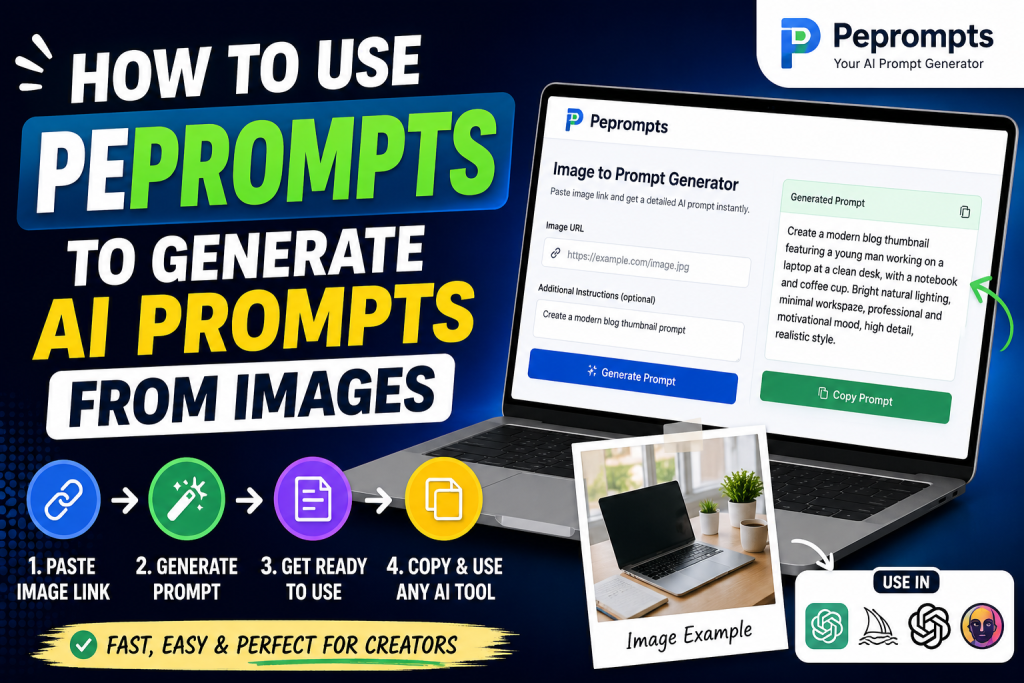
Peprompts is a simple prompt generator tool designed for creators who want to turn image links into useful AI prompts. Instead of spending too much time guessing the right words, you can paste an image URL, add a short note about the style you want, and generate a ready-to-use prompt for AI tools.
This guide explains how to use Peprompts to generate AI prompts from images, what kind of images work best, how to improve your results, and how bloggers, YouTubers, designers, freelancers, and content creators can use it in daily work.
What Is Peprompts?
Peprompts is a web-based AI prompt generator tool. Its main purpose is to help users create better prompts from images, video links, blog topics, and creative ideas.
For image-based prompt generation, Peprompts works like a creative assistant. You provide an image link, and the tool helps convert that visual reference into a written prompt. The generated prompt can then be used in AI image tools such as ChatGPT image generation, Midjourney, Leonardo AI, DALL-E, Ideogram, Adobe Firefly, or other creative platforms.
Peprompts is especially useful for people who regularly create:
Blog thumbnails
YouTube thumbnails
Pinterest graphics
AI image prompts
Fashion images
Product visuals
App UI mockups
Logo concepts
Social media banners
Marketing creatives
The goal is not only to describe the image, but to turn it into a useful creative prompt that can guide an AI image generator.
Why Image-to-Prompt Tools Are Useful
A strong prompt can make a big difference in AI image generation. If your prompt is too short, the output may look basic. If your prompt is unclear, the image may not match your idea. If your prompt misses style, lighting, angle, color, or composition, the result can feel unfinished.
For example, this is a weak prompt:
“Create a fashion image.”
A better prompt would be:
“Create a clean modern fashion blog image showing a stylish woman wearing a beige blazer, white top, and blue jeans, standing near a soft neutral background, natural lighting, editorial style, realistic look, high detail, no watermark.”
The second prompt is much stronger because it explains the subject, clothing, background, lighting, style, quality, and restrictions.
Peprompts helps users move from vague ideas to more complete prompts. This is helpful for beginners who do not know prompt writing and for professionals who want to save time.
How Peprompts Works
The basic working of Peprompts is simple.
First, the user finds an image that they want to use as inspiration. Then they copy the image link and paste it into the Peprompts tool. After that, they can add optional notes, such as the purpose of the prompt or the style they want.
For example, a user might write:
“Make this suitable for a blog thumbnail.”
Or:
“Create a cinematic YouTube thumbnail prompt from this image.”
Or:
“Use this outfit style but make it more modern and clean.”
After clicking the generate button, Peprompts creates a written prompt based on the image link and user instructions. The user can copy the prompt and paste it into their favorite AI image tool.
Depending on the setup, Peprompts may work in two ways:
If API support is enabled, it can generate more detailed results from accessible image URLs.
If API support is not enabled, it can still create helpful prompt text using the URL context and user notes.
Either way, the main purpose is to help users write better prompts faster.
Step-by-Step Guide to Use Peprompts
Step 1: Open Peprompts
Visit the Peprompts website. On the homepage, you will see the prompt generator section. This is where you can enter your image link and generate a prompt.
The tool is designed to be simple, so you do not need any advanced technical knowledge. If you can copy and paste a link, you can use the basic workflow.
Step 2: Copy the Image Link
Find the image you want to use as inspiration. This image can be from your own website, blog media library, design reference, product page, or any public image URL that you have permission to use as a reference.
To copy an image link, right-click on the image and choose “Copy image address” if your browser supports it. On mobile, you can usually long-press the image and copy the image link, depending on the website.
A direct image URL usually ends with file types like:
.jpg
.jpeg
.png
.webp
For best results, use a direct image link instead of a full webpage link. A direct image URL gives the tool a clearer reference.
Step 3: Paste the Image URL into Peprompts
After copying the image link, paste it into the Peprompts input box.
Make sure the link is complete and accessible. If the image is private, blocked, or behind a login page, the tool may not be able to use it properly. Public image links usually work better.
Step 4: Add a Short Note
This step is optional but highly recommended. Your note tells Peprompts what kind of prompt you want.
For example:
“Create a blog thumbnail prompt.”
“Make it suitable for YouTube thumbnail.”
“Describe the outfit and background.”
“Turn this into a realistic product photography prompt.”
“Create a clean Pinterest image prompt.”
“Make the style modern, bright, and professional.”
These extra notes help the tool generate a more focused prompt.
Step 5: Click Generate Prompt
Now click the generate button. Peprompts will process your input and create a prompt.
The generated prompt may include details such as:
Main subject
Background
Colors
Lighting
Style
Composition
Camera angle
Mood
Quality level
Use case
Restrictions like no watermark or no extra text
A complete prompt is usually more useful than a short description because AI image tools need clear guidance.
Step 6: Copy the Prompt
Once the prompt appears, copy it. You can then paste it into your preferred AI image generator.
Before using the prompt, read it once. If needed, you can manually edit details such as colors, image size, style, or text instructions.
Step 7: Use the Prompt in an AI Image Tool
Paste the prompt into an AI image generation tool. Choose your image size and style settings if the platform allows it.
For blog thumbnails, landscape formats usually work well.
For Pinterest, vertical images often perform better.
For app UI mockups, portrait mobile ratios are useful.
For social media posts, square formats can be practical.
After generating the image, review the output. If it does not match your idea, adjust the prompt and try again.
Best Types of Images to Use with Peprompts
Peprompts can be useful for many image types, but some images work better than others.
1. Blog Thumbnail References
If you want to create blog thumbnails, use clear images with simple composition. A good reference might include a person, laptop, product, chart, tool dashboard, fashion outfit, or clean graphic layout.
For example, if your article is about ChatGPT prompts, you can use a clean laptop image with AI-related icons and ask Peprompts to create a thumbnail prompt.
2. Fashion Images
Fashion images work very well because they include visible details like clothing, colors, accessories, pose, and background. Peprompts can help describe outfits in a way that AI tools understand.
Example note:
“Create a modern fashion blog image prompt based on this outfit.”
3. Product Images
Product images are useful for eCommerce visuals, review blogs, comparison posts, and promotional graphics. You can ask Peprompts to create a product photography prompt with clean lighting and professional background.
4. YouTube Thumbnail References
If you are a YouTuber or thumbnail designer, you can use image links as style references. Add a note explaining your video topic and thumbnail style.
Example:
“Turn this into a YouTube thumbnail prompt for an AI tools review video.”
5. App UI and Website Screenshots
Designers can use app screenshots or website sections as references. Peprompts can help describe layout style, color palette, cards, buttons, spacing, and overall design direction.
This is useful when creating UI mockups or app screen prompts.
Example Prompts Generated from Image Ideas
Example 1: Fashion Blog Image
Input note:
“Create a fashion blog image prompt from this outfit.”
Possible output:
“Create a clean modern fashion blog image showing a stylish woman wearing a beige blazer, white fitted top, blue straight-leg jeans, and simple accessories. Use soft daylight, neutral city background, editorial fashion style, realistic photography, natural pose, high detail, modern lifestyle mood, no watermark.”
Example 2: AI Tools Thumbnail
Input note:
“Make this image style suitable for an AI tool review thumbnail.”
Possible output:
“Create a bright tech blog thumbnail showing a laptop screen with an AI chatbot interface, glowing green and blue accents, clean desk setup, bold headline space on the left, modern digital background, productivity icons, high contrast, professional look, sharp details, no watermark.”
Example 3: Product Image Prompt
Input note:
“Create a clean product photography prompt.”
Possible output:
“Create a professional product photography image of a modern wireless keyboard placed on a clean desk with soft shadows, neutral background, minimal accessories, natural lighting, sharp focus, commercial product style, high detail, clean composition, no text, no watermark.”
Example 4: YouTube Thumbnail Prompt
Input note:
“Create a YouTube thumbnail prompt for a tutorial.”
Possible output:
“Create a high-contrast YouTube thumbnail showing a smiling creator pointing at a laptop screen, bold colorful text area, tutorial icons, clean modern background, bright lighting, sharp face, strong composition, engaging but professional style, no clutter, no watermark.”
How Bloggers Can Use Peprompts
Bloggers need visuals for almost every post. A blog with only text can look plain, while helpful images can improve readability and user experience.
Peprompts can help bloggers create prompts for:
Featured images
Section images
Tutorial screenshots
Comparison graphics
Pinterest pins
Social media sharing images
Infographic-style visuals
For example, if you write a blog post called “Best AI Tools for Bloggers,” you can use Peprompts to create an image prompt for a clean AI tools thumbnail. This saves time and keeps your visuals consistent.
Bloggers can also create multiple image styles from one topic. For example:
A main blog thumbnail
A Pinterest pin
A social media banner
A section illustration
A comparison graphic
This helps turn one article into multiple visual assets.
How YouTubers Can Use Peprompts
YouTubers can use Peprompts to generate thumbnail ideas from reference images. A good thumbnail prompt usually includes emotion, subject, background, text space, color contrast, and main visual focus.
For example, a YouTuber making a video about “Best ChatGPT Prompts” can use Peprompts to create a thumbnail prompt with a laptop, AI logo, bold text, and productivity icons.
The tool can help YouTubers create prompts for:
Tutorial thumbnails
AI tools reviews
Tech thumbnails
Education thumbnails
Story thumbnails
Explainer-style visuals
A strong prompt can help generate better thumbnail concepts before final editing.
How Freelancers Can Use Peprompts
Freelancers can use Peprompts to speed up creative work for clients. If a client sends a reference image, the freelancer can use Peprompts to create a cleaner prompt and generate similar-style concepts.
This is useful for:
Graphic designers
Thumbnail designers
Blog writers
Social media managers
UI/UX designers
Content creators
Prompt engineers
Digital marketers
For example, if a client wants a “modern clean banner similar to this style,” the freelancer can use the image as a reference and generate a detailed prompt.
This saves time and helps explain the creative direction clearly.
Tips to Get Better Results from Peprompts
Use Clear Image Links
Use direct image URLs whenever possible. If the tool cannot access the image, the result may not be accurate.
Add Useful Notes
Do not only paste the URL. Add a short note explaining what you want. The more useful your note is, the better the prompt can become.
Mention the Final Use
Tell the tool where the prompt will be used:
Blog thumbnail
YouTube thumbnail
Pinterest image
Product visual
App UI mockup
Logo idea
Social media post
This helps the tool write the prompt in the right direction.
Edit the Prompt Before Final Use
The generated prompt is a strong starting point, but you can improve it. Add your own brand colors, style preferences, size, and text instructions.
Keep Prompts Specific
Avoid very general wording. Instead of “make it nice,” say “make it clean, modern, bright, and suitable for a blog thumbnail.”
Common Mistakes to Avoid
Using Private Image Links
If the image is not publicly accessible, the tool may not work correctly. Always use public image links when possible.
Giving No Instructions
A plain URL without notes may produce a less focused prompt. Add at least one short instruction.
Expecting Exact Copies
Peprompts is for generating creative prompts, not for copying someone else’s work exactly. Use it for inspiration and original creation.
Ignoring Copyright
Do not use copyrighted images in a way that violates rights. If you are creating content for a website, use your own images, licensed images, or AI-generated images that you are allowed to use.
Publishing Without Reviewing
Always review generated prompts and final images before publishing. Make sure the result matches your content and brand style.
Best Practices for Website Owners
If you are using Peprompts for blog content, keep your site clean and helpful. Add original articles, proper images, clear categories, About page, Contact page, Privacy Policy, and Terms page.
For each blog post, use relevant images and alt text. Do not overload pages with ads or unnecessary elements. A simple layout with helpful content usually creates a better user experience.
If you create AI-generated images, use them responsibly. Avoid misleading visuals, fake claims, or images that confuse readers
Conclusion
Peprompts is a useful tool for anyone who wants to generate AI prompts from images without spending too much time writing from scratch. It helps turn visual ideas into detailed written prompts that can be used in AI image generators.
The process is simple: copy an image link, paste it into Peprompts, add a short note, generate the prompt, review it, and use it in your preferred AI tool. With the right image and clear instructions, you can create prompts for blog thumbnails, YouTube thumbnails, product visuals, fashion images, UI mockups, and social media graphics.
The best way to get strong results is to be specific. Tell Peprompts what you want, where the image will be used, and what style you prefer. Then edit the final prompt to match your exact purpose.
For bloggers, YouTubers, freelancers, and designers, Peprompts can become a helpful part of the creative workflow. It saves time, improves prompt quality, and makes it easier to create consistent visuals for different platforms.
FAQs
1. What is Peprompts used for?
Peprompts is used to generate AI prompts from image links, video links, blog topics, and creative ideas. It helps users create ready-to-use prompts for AI image tools and creative platforms.
2. How do I generate a prompt from an image using Peprompts?
Copy a public image URL, paste it into Peprompts, add a short note about what you want, and click the generate button. The tool will create a written prompt that you can copy and use.
3. Can Peprompts copy an image exactly?
No. Peprompts is designed to help create prompt descriptions and creative inspiration. It should be used to create original content, not to copy someone else’s work exactly.
4. What kind of image links work best?
Public direct image links work best, especially links ending in .jpg, .jpeg, .png, or .webp. Private links, blocked images, or pages behind login screens may not work properly.
5. Who can use Peprompts?
Bloggers, YouTubers, designers, freelancers, social media managers, AI creators, and website owners can use Peprompts to create better prompts for visual content.
6. Can I use Peprompts for blog thumbnails?
Yes. Peprompts is useful for creating blog thumbnail prompts. You can paste an image reference, add your blog topic, and generate a prompt for a clean featured image.
7. Can Peprompts help with YouTube thumbnails?
Yes. You can use Peprompts to create YouTube thumbnail prompts from image references or video ideas. Add notes about the video topic, style, colors, and text area.
8. Do I need prompt writing experience to use Peprompts?
No. Peprompts is designed to make prompt writing easier for beginners. You only need to provide an image link and a short instruction.